

How do I connect Google Calendar?
First connect the website to Google once, in Tickabell › Settings › Google Calendar. Then each team member shares their calendar with the service email and pastes its link in their profile.
Where: Tickabell›Settings›Google Calendar
Steps
- Make the JSON key in Google Cloud and upload it in Tickabell › Settings › Google Calendar with “Choose .json key file”.
- Save. You see “Google is connected.” and the service email.
- Open Google Calendar on a computer. On the left, next to the calendar, press ⋮ › Settings and sharing.
- In “Share with specific people” add the service email with the permission “Make changes to events”.
- Scroll down to “Integrate calendar” and copy the “Calendar ID”.
- In Locations › Team, in the person's profile, paste it in the “Google Calendar” field and save.
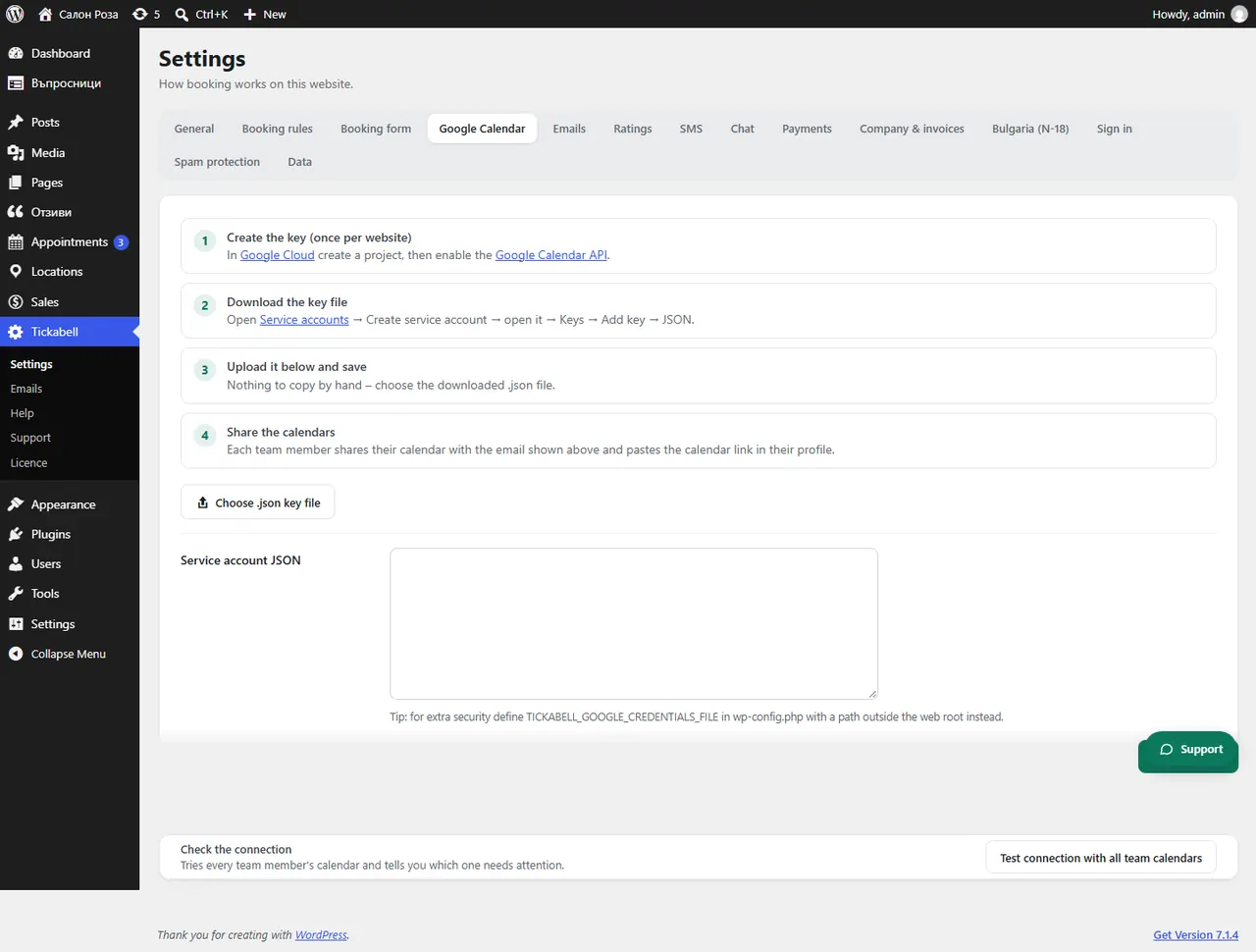
Good to knowAnything busy in Google Calendar is blocked for booking automatically. All-day events in Google are “free” by default, so a holiday entered there does not block booking unless you mark it as busy. With “Test connection with all team calendars” you check them all at once.
Related articles
- How do I make the JSON key in Google?
- How does a team member see their appointments in their own calendar (iCal)?
- Appointments do not appear in Google Calendar
Was this article helpful?