

How do I connect BORICA?
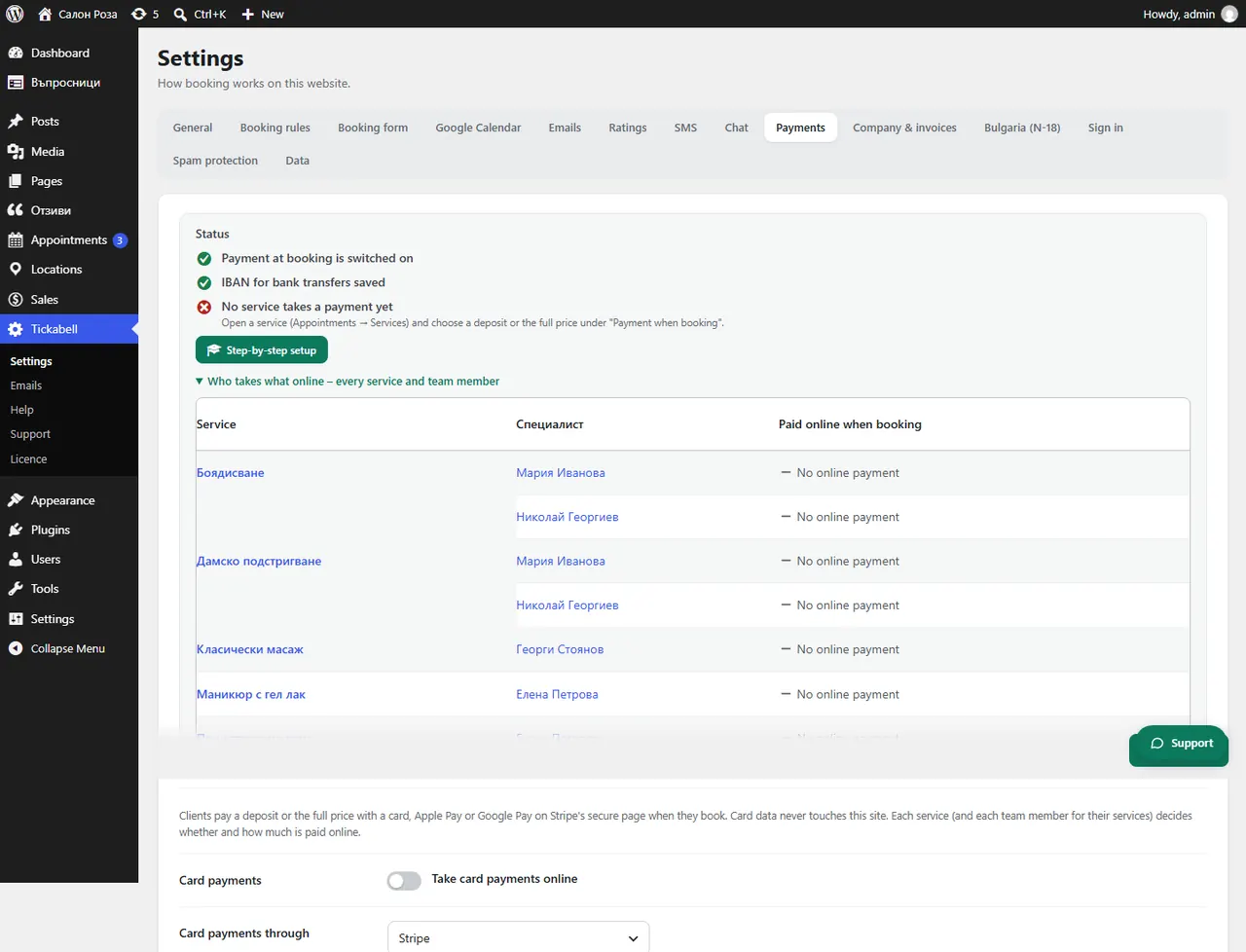
Ask your bank for a virtual POS for e-commerce. Then in Tickabell › Settings › Payments choose BORICA and enter the terminal ID, the merchant ID and the keys.
Where: Tickabell›Settings›Payments›BORICA (virtual POS)
Steps
- Ask your bank for a virtual POS for e-commerce. The bank gives you the terminal ID and the merchant ID.
- Create a private key and a certificate signing request (CSR), for example with BORICA's tool at 3dsgate-dev.borica.bg/generateCSR, and upload the request to BORICA's merchant portal. This is done separately for test and for real mode.
- Give the bank the address for the answers (BACKREF) that Tickabell shows in the same tab.
- In Tickabell › Settings › Payments, in “Card payments through”, choose BORICA.
- Fill in “Terminal ID” (8 characters, for example V1800001), “Merchant ID”, “Private key” and “BORICA public key”.
- Make a test payment and switch to real mode once the bank confirms.
Good to knowBORICA works with the banks in its system, for example UBB, UniCredit Bulbank, Postbank and ProCredit. Ask your bank whether it offers a virtual POS through BORICA.
Related articles
- Test and real mode: what is the difference?
- How do I check a payment in BORICA?
- How do I take payments online?
Was this article helpful?