

How do I switch on two-step sign-in?
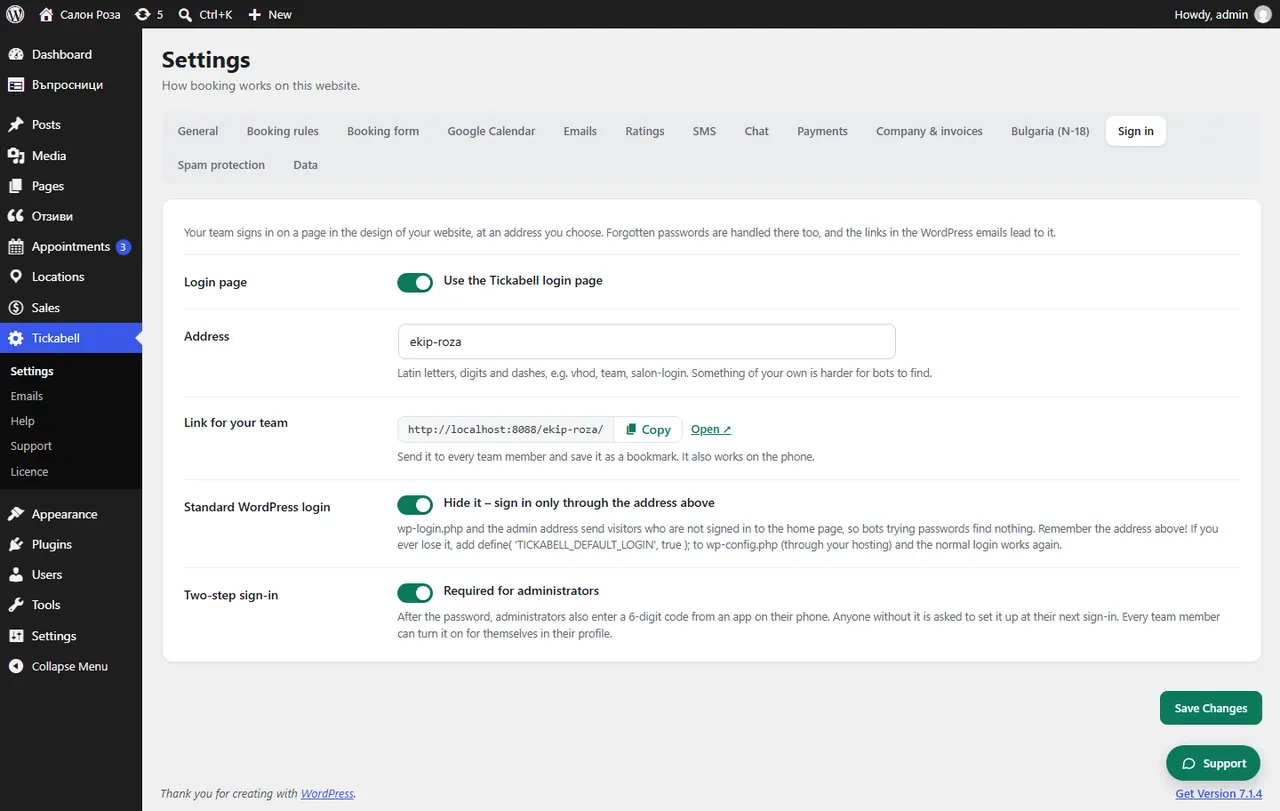
Each person switches it on in their WordPress profile, under “Two-step sign-in”, with a code by email or an authenticator app. In Tickabell › Settings › Sign in you can make it required for administrators.
Where: Tickabell›Settings›Sign in›Two-step sign-in
Steps
- Open your WordPress profile and scroll down to “Two-step sign-in”.
- Choose “Code by email” or “Authenticator app”, for example Google Authenticator or Microsoft Authenticator.
- Enter the code and save the profile.
- Keep the backup codes in a safe place. Each works once and they are shown only now.
- For administrators: in Tickabell › Settings › Sign in tick “Required for administrators”.
Good to knowAfter the password, the login also asks for a 6-digit code, so a stolen password alone is not enough. If someone loses their phone, an administrator can switch off two-step sign-in in their profile.
Related articles
Was this article helpful?