

How do I switch on SMS reminders?
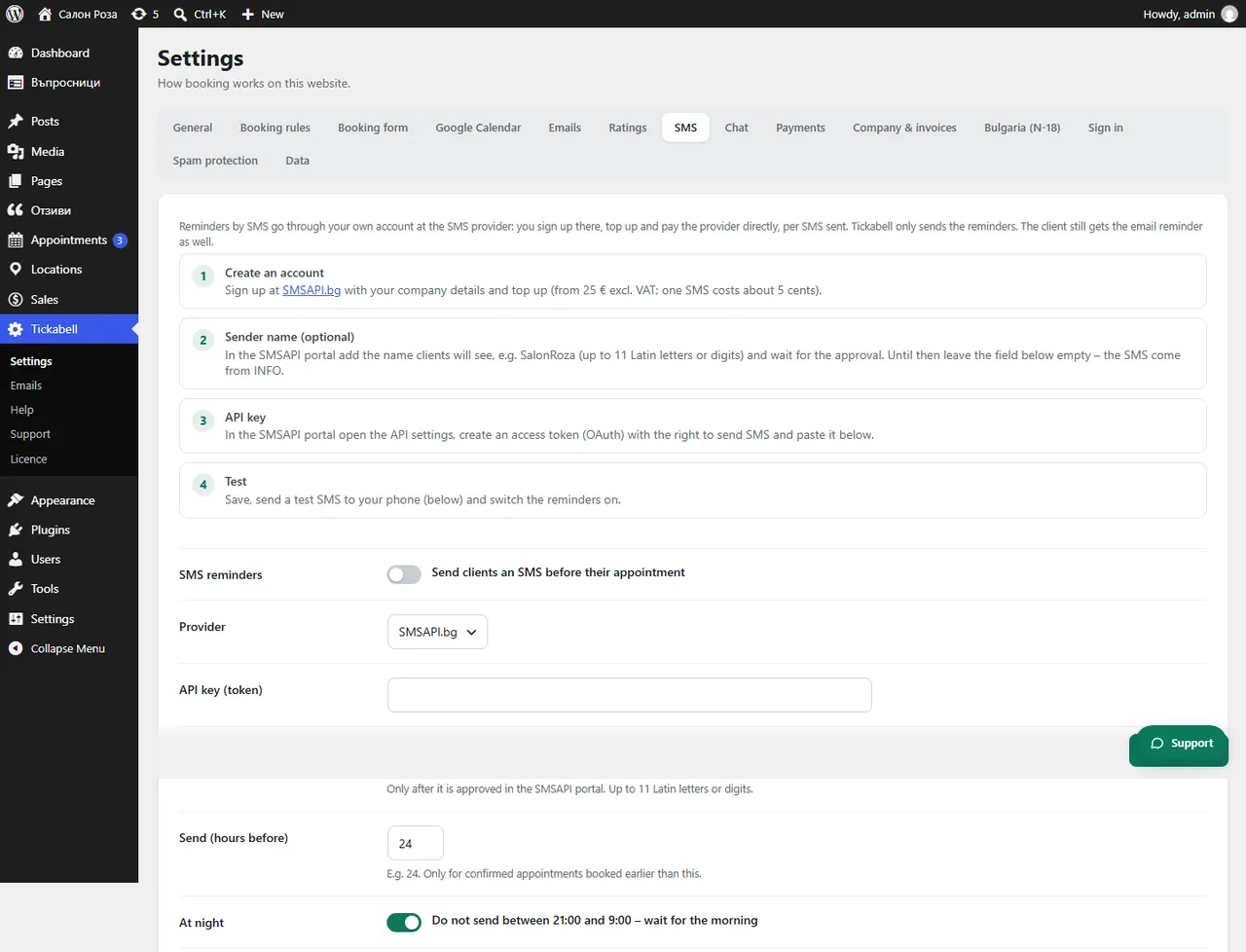
Register with SMSAPI.bg, top up the account and paste the API key in Tickabell › Settings › SMS. Then send a test SMS and tick “Send clients an SMS before their appointment”.
Where: Tickabell›Settings›SMS
Steps
- Register with SMSAPI.bg with your company details and top up the account.
- Optionally: in the SMSAPI portal add a sender name, for example SalonRoza, and wait for it to be approved.
- In the SMSAPI portal create an access token (OAuth) allowed to send SMS.
- Open Tickabell › Settings › SMS and paste the token in “API key (token)”.
- Save and press “Send test SMS”.
- Tick “Send clients an SMS before their appointment” and set “Send (hours before)”.
Good to knowUntil the sender name is approved, leave the field empty. Until then the SMS come from INFO. The client still gets the email reminder too.
Related articles
- How much do SMS cost and how are they paid for?
- Why are the SMS in Latin letters?
- How do I stop SMS being sent at night?
Was this article helpful?