

How do I connect Stripe?
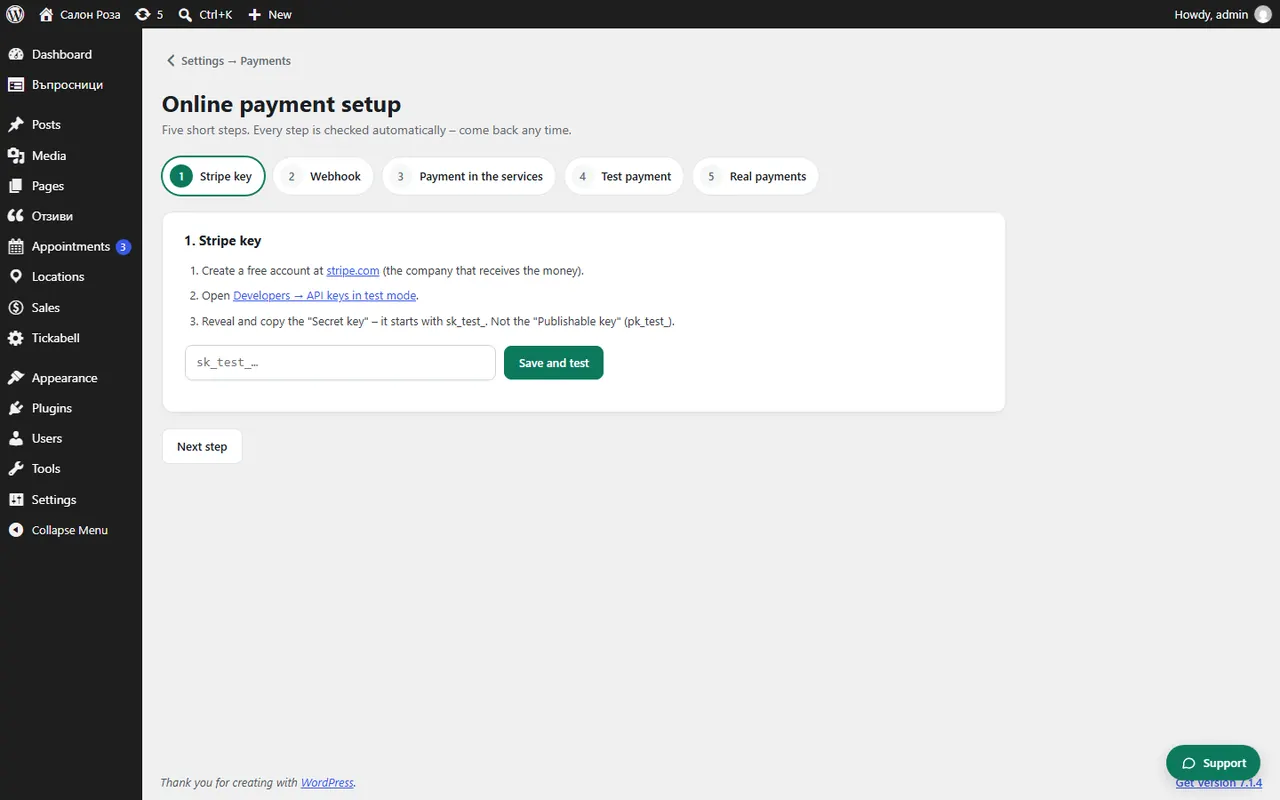
Open “Online payment setup” from Tickabell › Settings › Payments › Step-by-step setup. You go through five steps: the Stripe key, the webhook, payment in the services, a test payment and real payments.
Where: Tickabell›Settings›Payments›Step-by-step setup
Steps
- 1. Stripe key: in Stripe open Developers › API keys, copy the secret key (it starts with sk_test_) and press “Save and test”.
- 2. Webhook: in Stripe › Developers › Webhooks add the address Tickabell shows, and the events checkout.session.completed, checkout.session.expired, checkout.session.async_payment_succeeded and charge.refunded. Paste the signing secret (it starts with whsec_).
- 3. Payment in the services: choose which services ask for a deposit or the full price.
- 4. Test payment: book an appointment with the test card 4242 4242 4242 4242.
- 5. Real payments: enter the live key (sk_live_) and the live webhook secret and switch “Mode” to real.
Good to knowThe client pays on Stripe's secure page, by card, Apple Pay or Google Pay. The card details never pass through your website. Companies not registered for VAT should check with their accountant whether Stripe's fees require registration (Art. 97a of the Bulgarian VAT Act).
Related articles
Was this article helpful?